How to Configure Restaurant Service & Order Settings
Adjusting service modes, kitchen pass screens, customer waiter calls, and order aging thresholds.
Steps
Toggle Kitchen Screen and Waiter Calls
Adjust the operational feature switches:
• Kitchen Screen: When enabled, accepted orders route to `/kitchen`. When disabled, waiters manage tickets directly from the Waiter Dashboard without a pass screen. • Waiter Call Enabled: Allows guests to send call requests from their phone menu. • Accepting Orders: Toggle this off at the end of the evening to pause incoming orders.
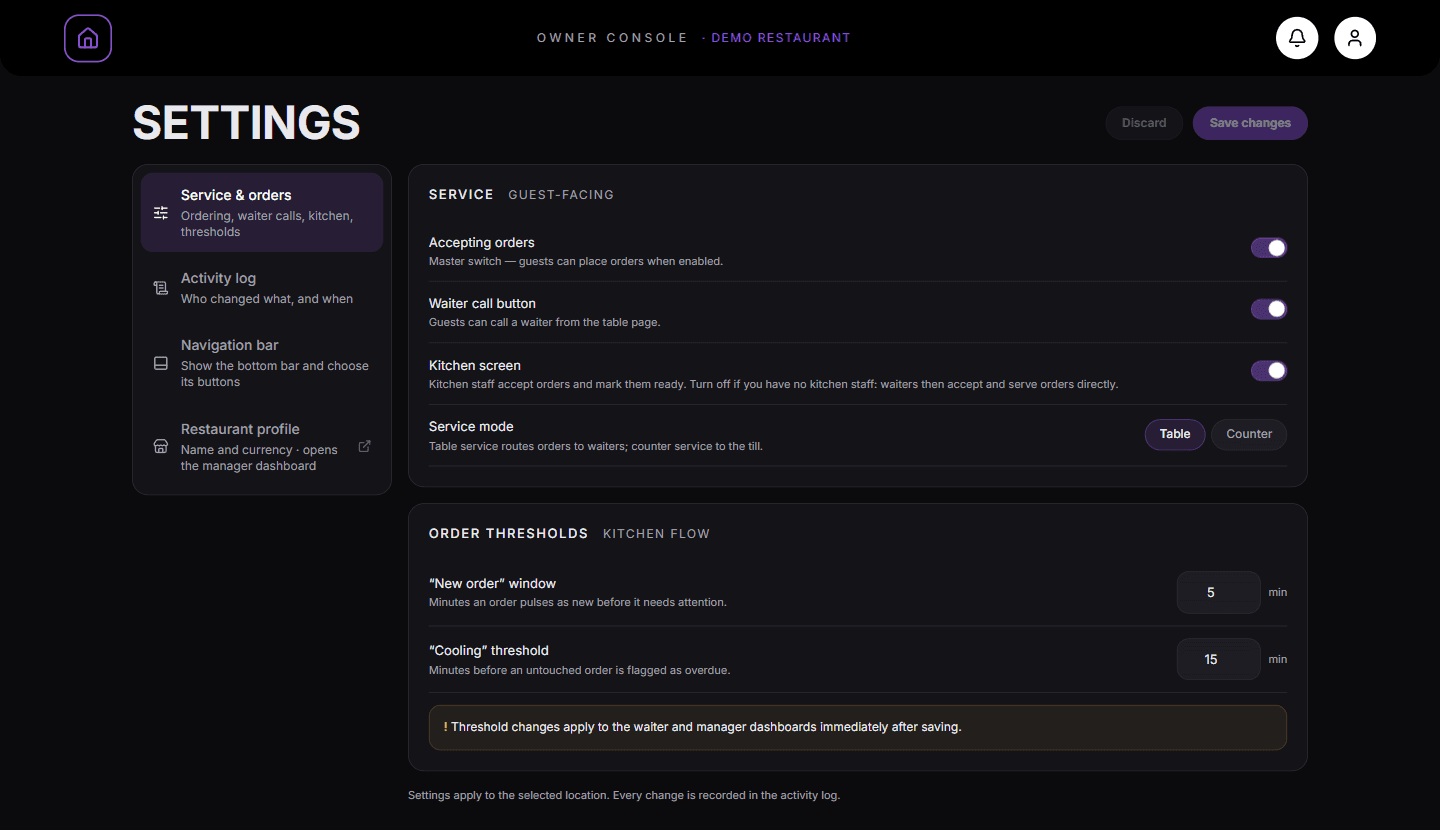
Switches for accepting orders, the waiter call button and the kitchen screen. Tune Order Aging Thresholds
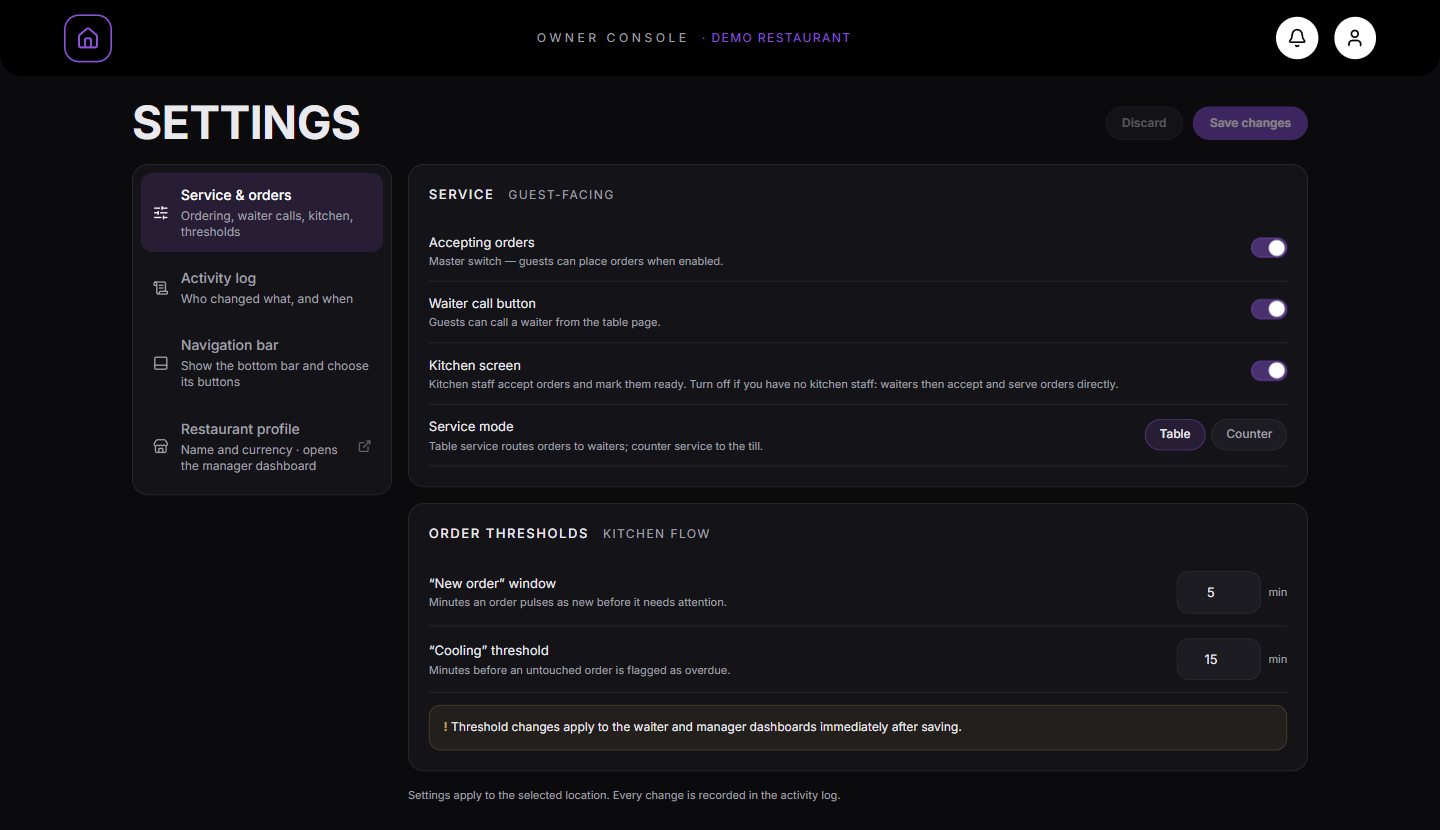
Set the minutes for the New and Cooling columns.
By default, orders under 5 minutes are New, 5 to 15 minutes are Cooling, and 15+ minutes are Critical. You can customize these numbers to match your kitchen’s speed.
The “New order” window and the “Cooling” threshold, in minutes. Save changes
Click "Save changes" in the header.
The updated service settings propagate live to customer menus and staff screens.
What you should see
The restaurant’s ordering workflow is configured to match your operating model.
Good to know
- Disabling "Accepting Orders" displays a polite "Kitchen closed" notice on customer menus while leaving existing orders active.
Related guides
- How to Configure Section Prep Times and Order TimersFine-tuning kitchen preparation targets per menu section and adjusting the New, Cooling, and Critical queue thresholds.
- Managing Order Queues and Timing StatesUnderstanding order aging (New, Cooling, Critical), updating order statuses, and advancing tickets to completion.