How to Manage Locations and Switch Between Restaurants
Navigating multi-unit restaurant portfolios, viewing location performance cards, and requesting new venues.
Steps
Open the Owner Console
Sign in with your Owner credentials to open the home screen at `/owner`.
The home screen lists all restaurants in your organization with their current subscription status, slug, and currency.
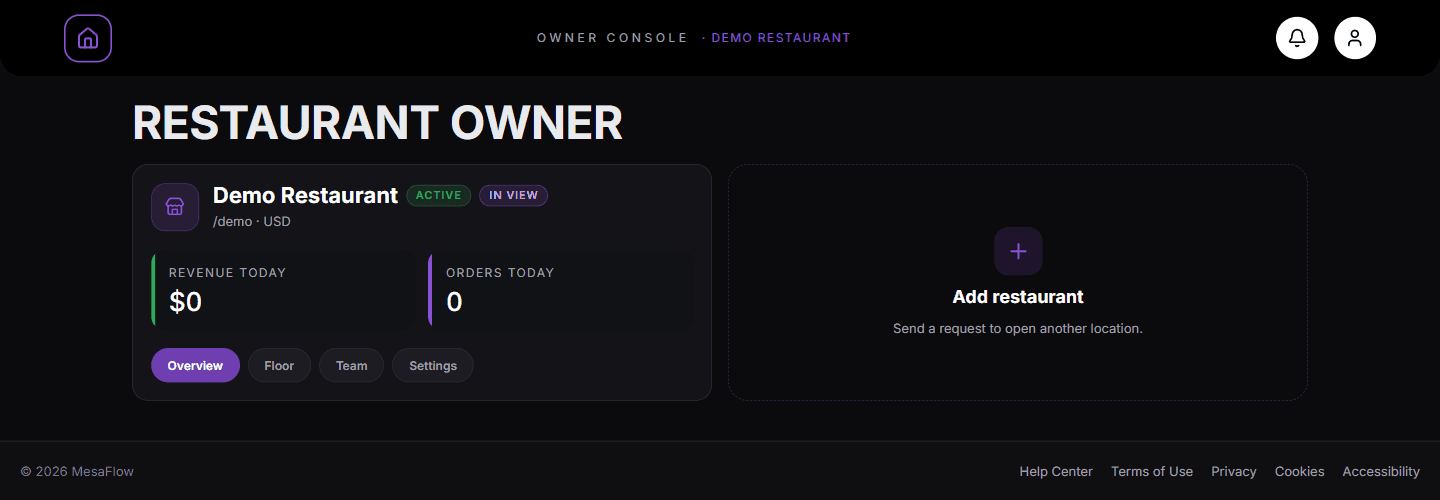
The Owner console lists each location as a card, with Overview, Floor, Team and Settings shortcuts. Narrow the console to a specific location
Click any of the action buttons on a location card:
• Overview: Opens `/owner/analytics` filtered to that location. • Floor: Opens the table heat map at `/owner/plan`. • Team: Opens staff management at `/owner/staff`. • Settings: Opens service parameters at `/owner/settings`.
Request a new restaurant location
Click the "+" card ("Add restaurant") at the end of the location grid.
In the modal, enter the restaurant name, country, region, and optional notes. The MesaFlow team will create the new restaurant and connect it to your account.
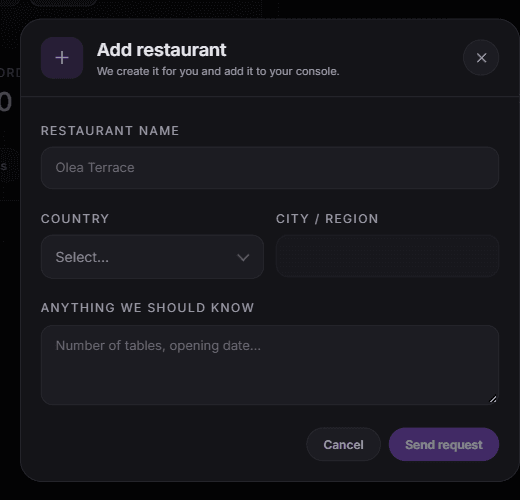
Add restaurant opens a request form. Fill in the name and where it is, then press Send request.
What you should see
You can seamlessly manage multiple dining locations from a single owner account.
Good to know
- You can switch the active restaurant anytime from the top navigation dropdown or by returning to `/owner`.
Related guides
- How to Review Business Analytics and Floor Heat MapEvaluating revenue, average checks, order volume, dish popularity, and table performance heat maps.
- How to Invite Staff and Manage Team MembersAdding staff members, assigning system roles, generating temporary credentials, resetting passwords, and deactivating accounts.
- How to Configure Restaurant Service & Order SettingsAdjusting service modes, kitchen pass screens, customer waiter calls, and order aging thresholds.