OwnerManagerSecurity & Access
How to Monitor the Activity and Audit Log
Tracking operational changes, menu adjustments, permission updates, and staff actions.
Who can do thisRestaurant Owners and Managers.
Steps
Review recorded events
Inspect the log entries for operational actions.
Events record: Timestamp, Staff user name & email, Action taken (e.g. Menu item price changed, Item 86ed, Staff role updated, Settings modified), and Target entity details.
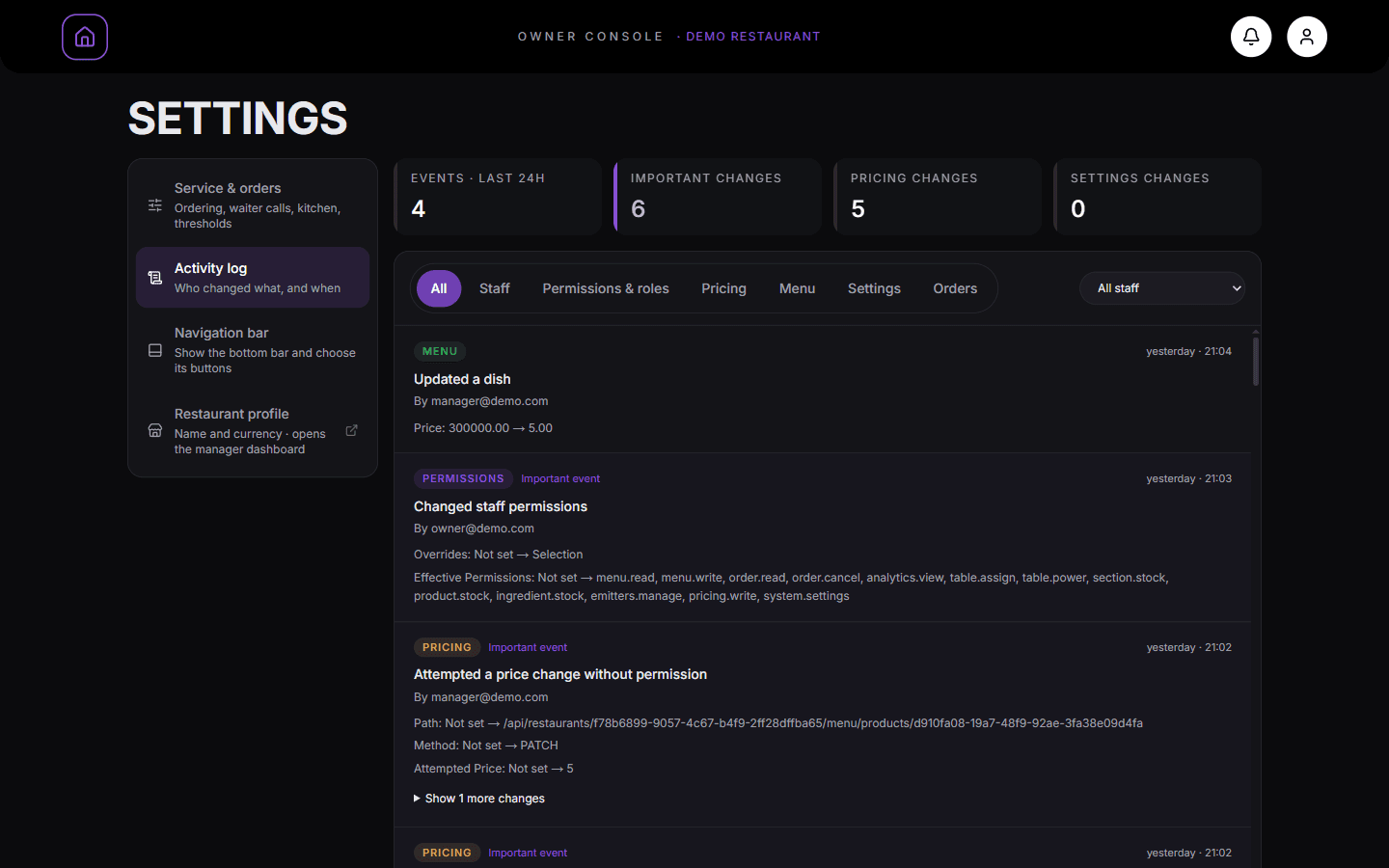
Counters for the last 24 hours sit above a list of every change, with who made it and when.
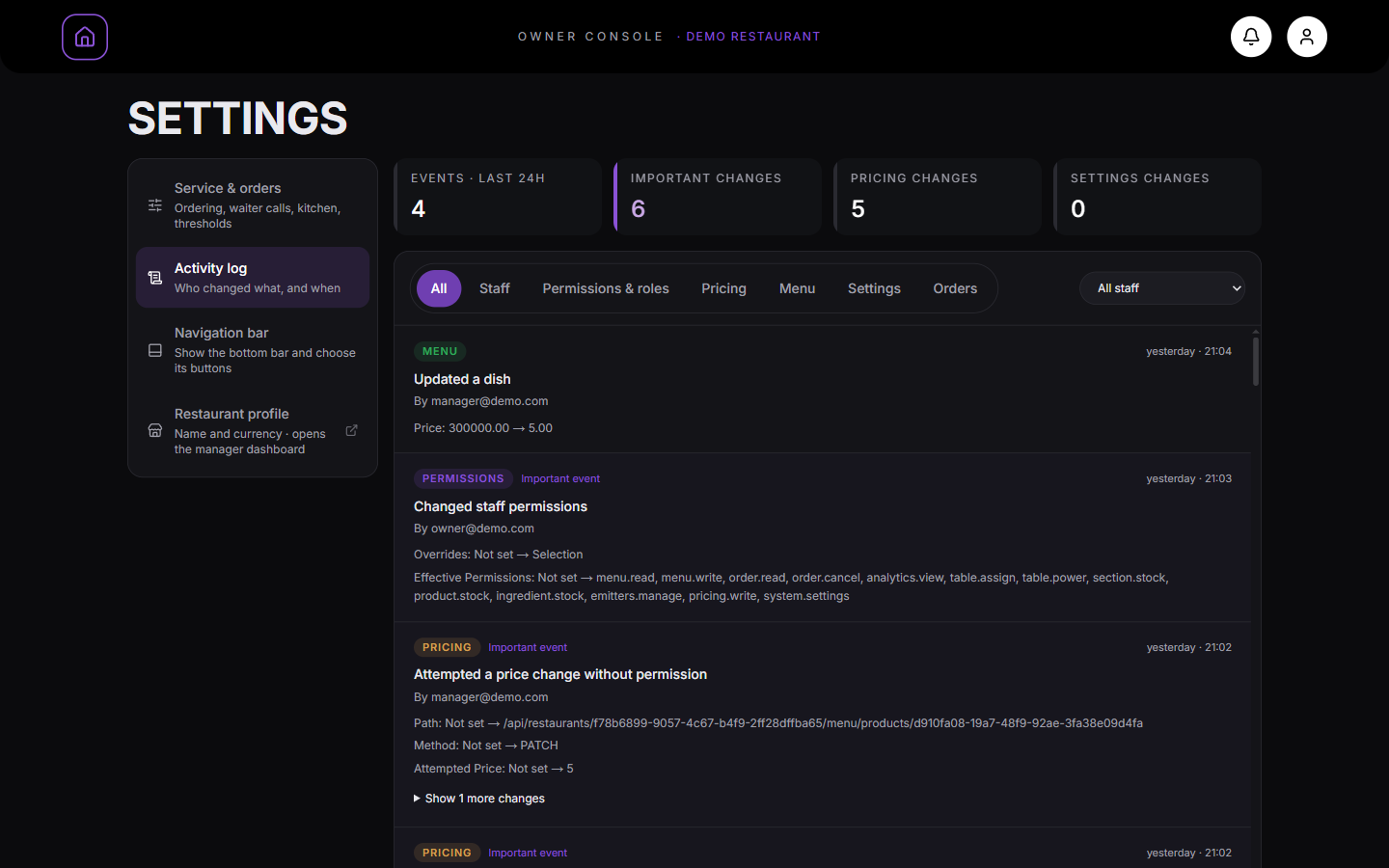
What you should see
You have a transparent record of all system and operational adjustments.
Good to know
- Activity log entries are immutable and preserved permanently.
Related guides
- How to Configure Restaurant Service & Order SettingsAdjusting service modes, kitchen pass screens, customer waiter calls, and order aging thresholds.
- How to Invite Staff and Manage Team MembersAdding staff members, assigning system roles, generating temporary credentials, resetting passwords, and deactivating accounts.