How to Invite Staff and Manage Team Members
Adding staff members, assigning system roles, generating temporary credentials, resetting passwords, and deactivating accounts.
Steps
Generate login credentials
Choose between sending an email invitation link or generating a secure temporary password.
If generating a temporary password, copy the generated credential and share it with the team member. When they first sign in at `/login`, they will be prompted to set their permanent password.
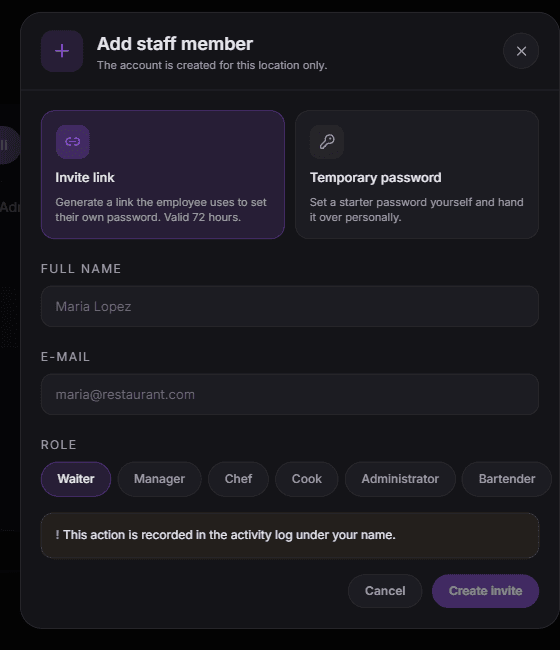
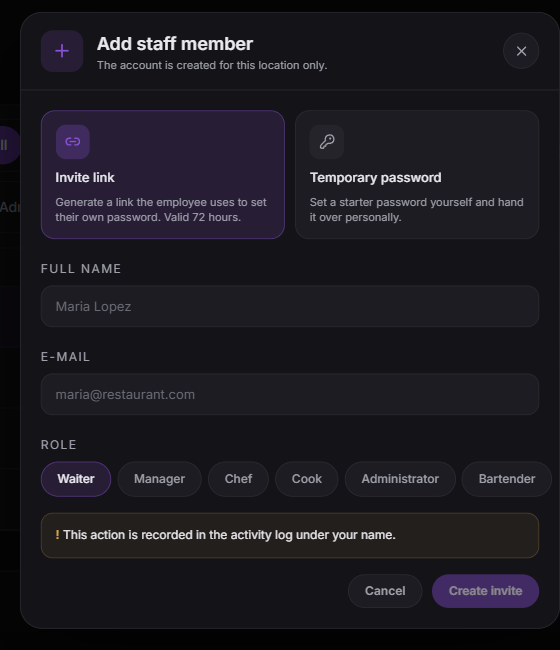
Choose how the person signs in: an invite link they use to set their own password, or a temporary password you hand over. Reset staff credentials or change roles
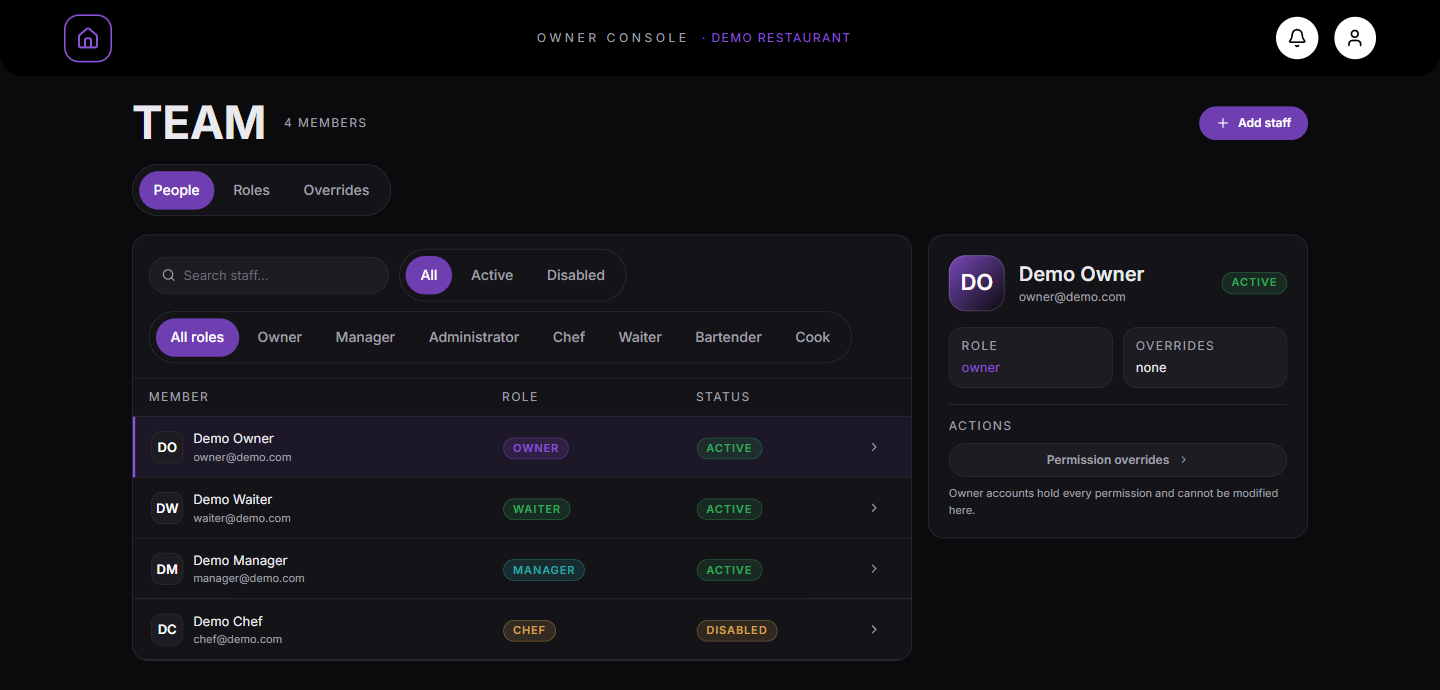
Select a staff member from the roster and open their profile panel on the right.
Click "Reset password" to generate fresh temporary credentials if a staff member is locked out, or change their role dropdown to adjust their access level.
Deactivate or remove a staff member
To revoke access, toggle the staff member's status to "Inactive" or select "Remove staff".
Deactivating immediately terminates any active login sessions for that user while preserving historical audit logs.
What you should see
Staff accounts are managed securely with appropriate access credentials.
Good to know
- Resetting a staff member’s password automatically signs them out of all active browser sessions.
Related guides
- How to Configure Role Permissions and User OverridesUnderstanding the role hierarchy, inspecting the permission matrix, and assigning custom overrides.
- Troubleshooting: Staff Cannot Log In or Password ProblemsAssisting team members locked out of their accounts, resetting credentials, and verifying account status.