Managing Order Queues and Timing States
Understanding order aging (New, Cooling, Critical), updating order statuses, and advancing tickets to completion.
Steps
Understand the three aging columns
Every active order is grouped into one of three visual timing categories:
• New (Green): Orders waiting under 5 minutes. • Cooling (Amber): Orders waiting between 5 and 15 minutes. • Critical (Red): Orders that have been waiting 15+ minutes and require immediate attention.
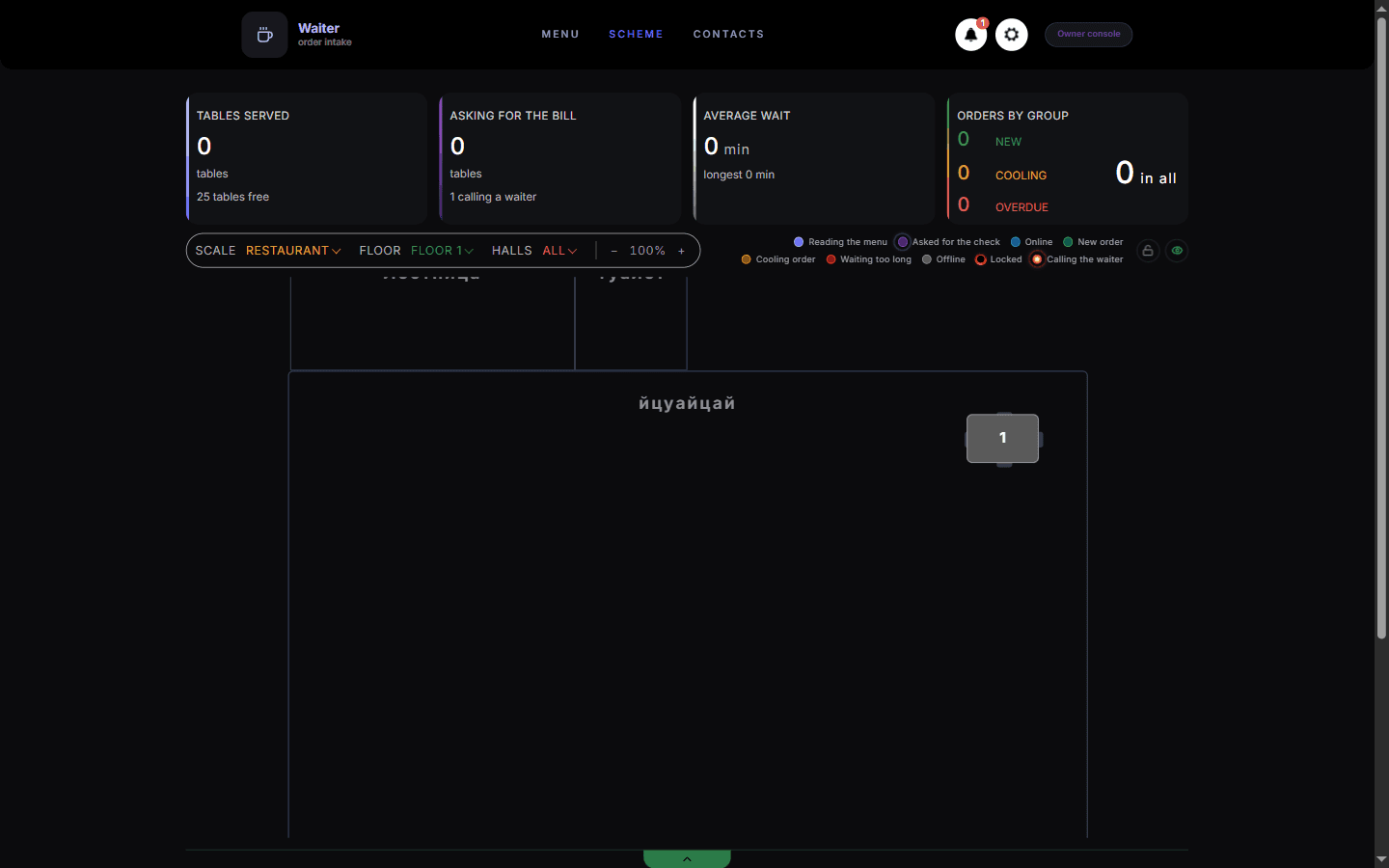
Orders by group shows how many orders are New, Cooling and Overdue. Understand order flow statuses
Orders progress through standardized statuses as they move through the restaurant:
• Pending: Guest placed the order; awaiting staff acknowledgment. • Accepted: Waiter reviewed the ticket and sent it to the kitchen. • Preparing: Kitchen is actively cooking the order. • Ready: The kitchen has completed preparation; dishes are on the pass waiting to be served. • Completed: Waiter has served the dishes to the table. • Canceled: Dropped or canceled before serving.
Open and inspect an order card
Tap on an order ticket to inspect the item breakdown.
The ticket shows table number, elapsed time, item quantities, portion selections, and custom modifications (such as added or removed ingredients highlighted in color).
Advance an order to the next step
Press the action button on the order card to advance it forward.
When a new order arrives, tap "Accept" to transmit it to the kitchen. Once dishes are brought to the table from the pass, tap "Serve" / "Complete" to finish the order ticket.
Edit an order before kitchen confirmation
If a customer requests a change right away, tap the edit icon on the ticket.
You can adjust quantities or remove an item while the ticket is in Pending or Accepted status. Once the kitchen accepts the ticket and begins cooking, the items are locked.
What you should see
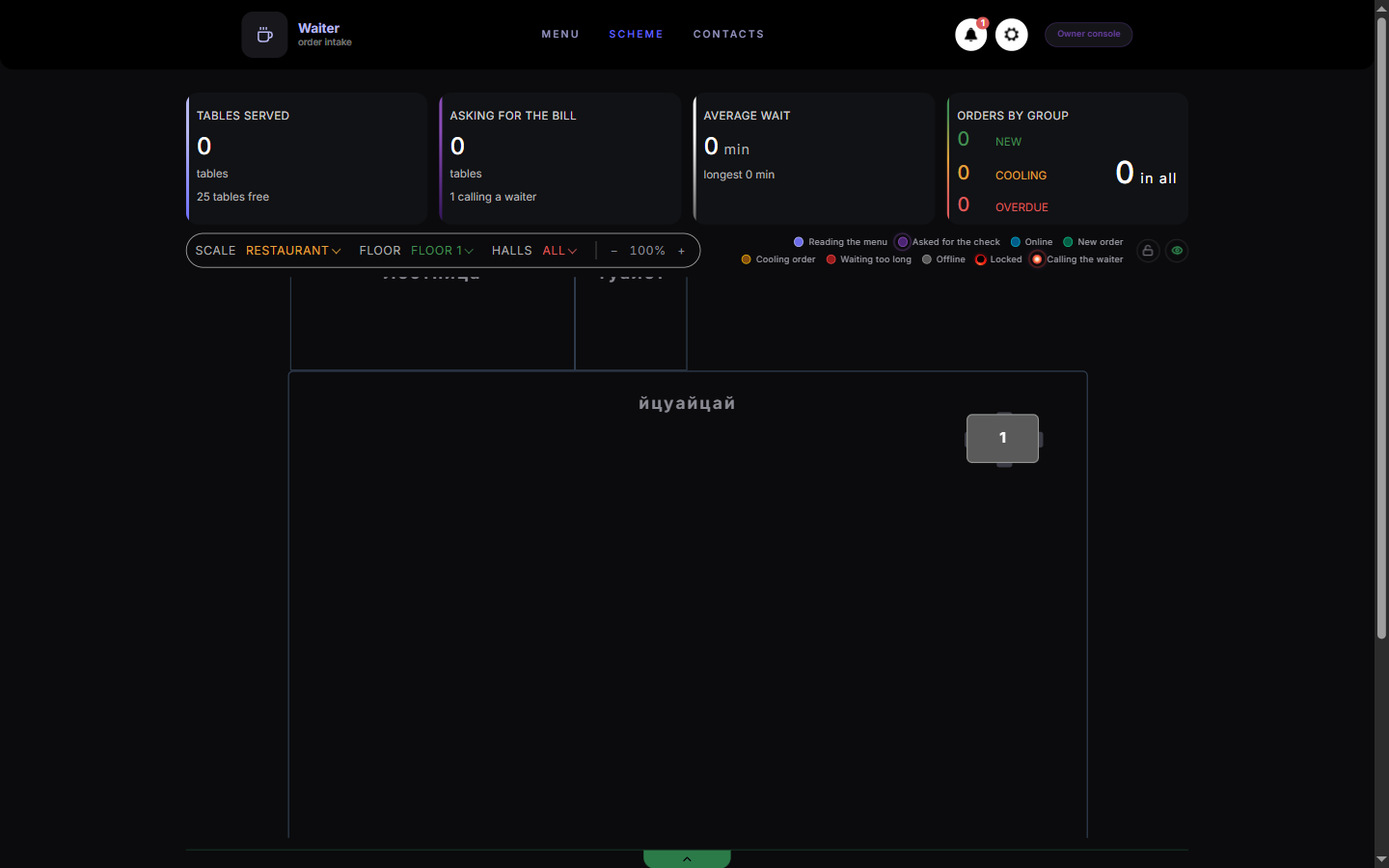
Orders are accurately tracked and progressed from submission through kitchen cooking to table delivery.
Good to know
- Venues operating without a dedicated kitchen screen automatically advance from Accepted directly to Served upon delivery.
- To cancel an order, select "Cancel" and pick an operational cancellation reason (e.g. Customer changed mind, Out of stock, Duplicate order).
Related guides
- Logging In and Navigating the Waiter DashboardSigning in to MesaFlow, accessing the floor workspace at /waiter, and understanding the layout on phones and tablets.
- Handling Customer Calls and Bill RequestsResponding to guest service alerts and settling table bills from the notifications drawer and tables screen.
- How to Place an Order on Behalf of a TableEntering an order for guests who prefer to order verbally or lack a mobile device.