Logging In and Navigating the Waiter Dashboard
Signing in to MesaFlow, accessing the floor workspace at /waiter, and understanding the layout on phones and tablets.
Steps
Sign in to your account
Go to the login screen at `/login` and enter your staff email and password.
When authenticated with a Waiter or Bartender role, MesaFlow automatically directs you to the Waiter Dashboard at `/waiter`. Check "Remember Me" if using your personal service device.
Understand the waiter header
Review the top navigation bar containing your role indicator, quick links, and account controls.
The header provides quick access to Menu (`/dashboard/menu`), Floor Scheme, and Tables (`/dashboard/tables`), as well as the notification bell and settings icon on the right.
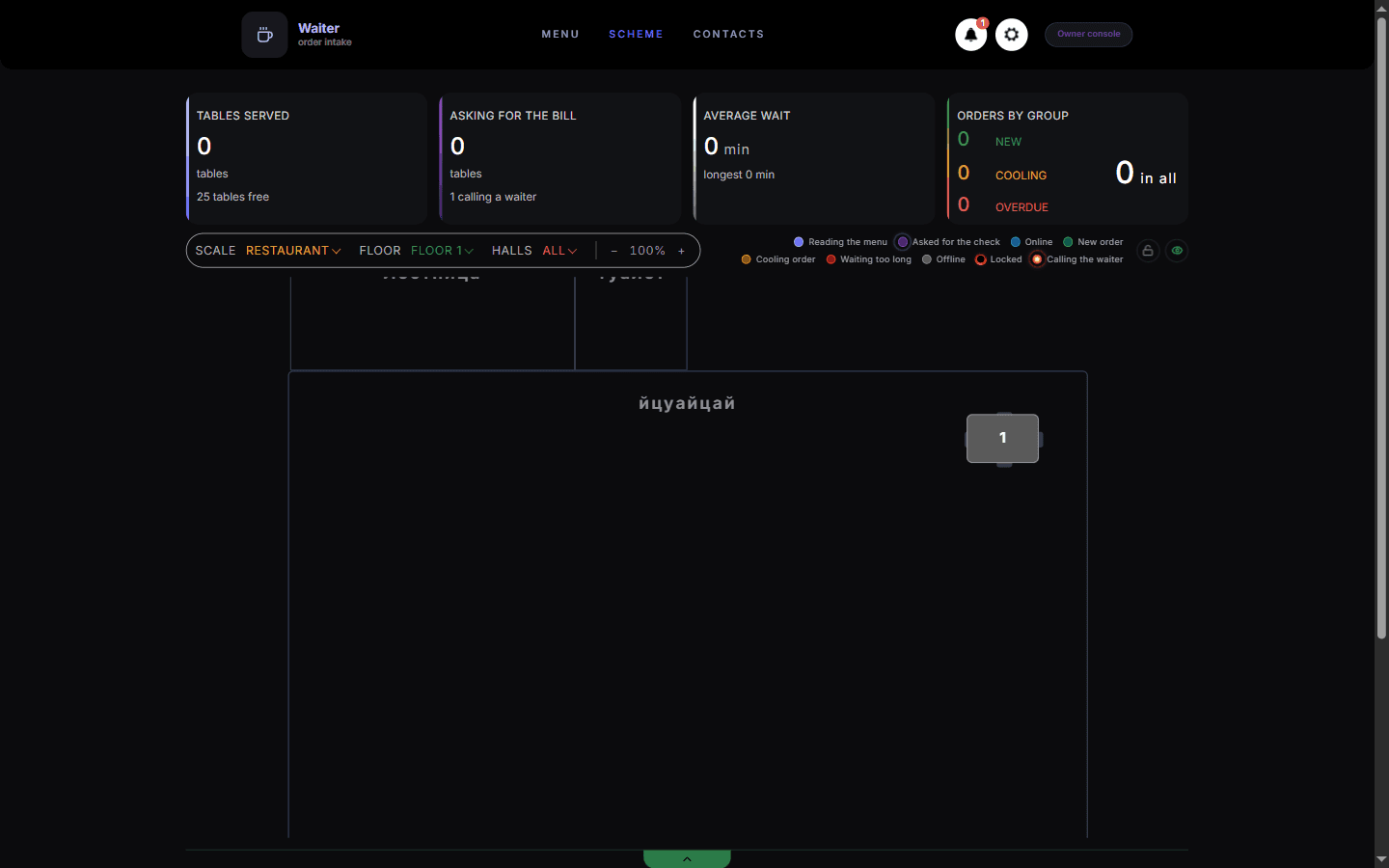
The waiter screen. Counters for served tables, bills, wait time and order ageing sit above the floor plan. Toggle the Floor Fold (Scheme)
Tap the floor toggle between the header and the order queue to reveal or hide the interactive floor plan.
The floor fold shows a live miniature layout of your room, tables with active orders, and tables currently calling for service. Tapping "SCHEME" lets you fold it away so the order queue takes the entire screen.
Navigate mobile queue tabs
On a mobile phone, use the top segment tabs to switch between order queues.
Mobile screens display one column at a time, ordered by urgency: Critical (red), Cooling (orange), and New (green). On tablets or wider desktop screens, all three columns appear side by side.
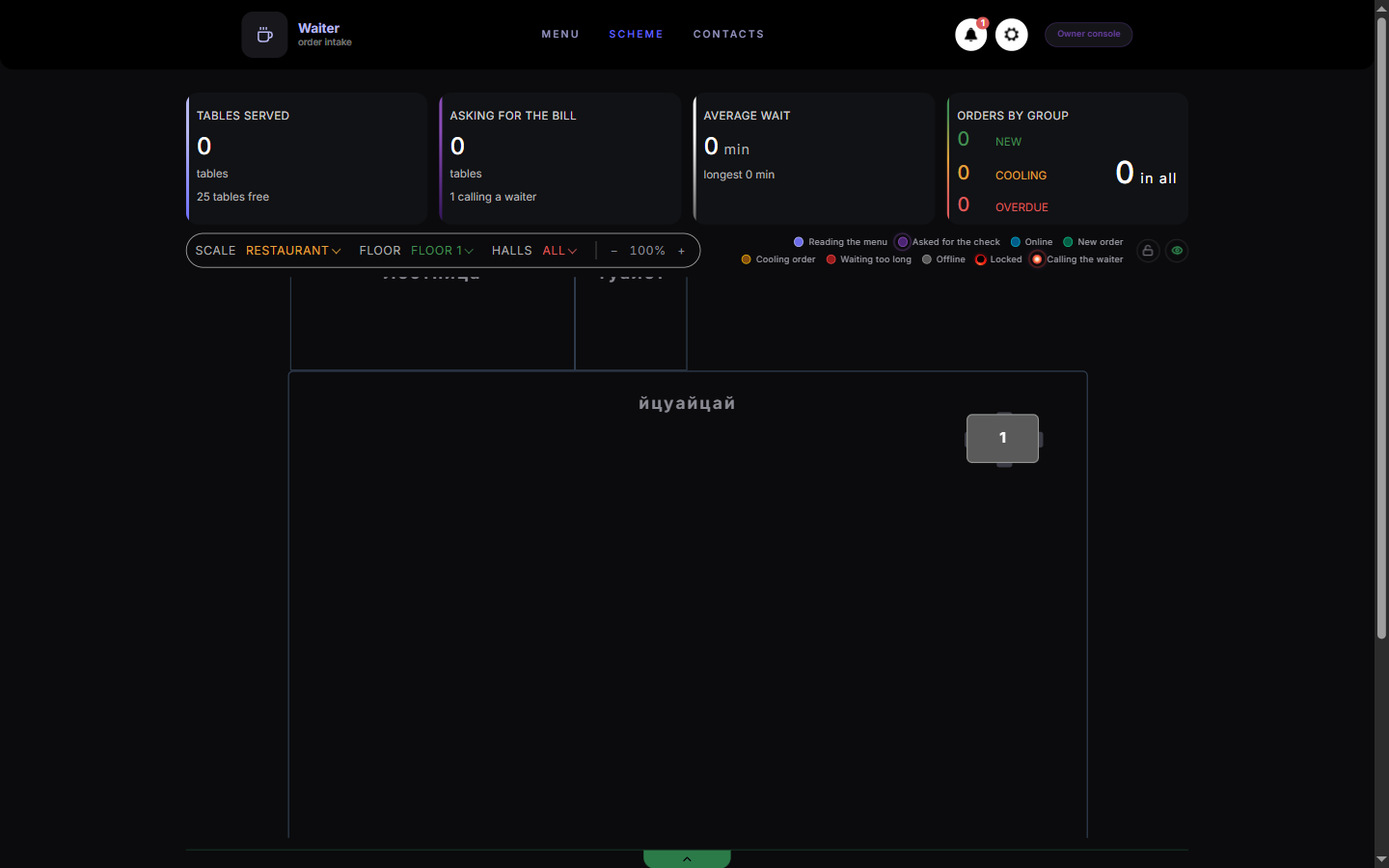
What you should see
You are signed in to the Waiter Dashboard and ready to monitor live dining room operations.
Good to know
- The dashboard updates in real time using live WebSockets. If the network drops, a reconnection indicator will appear automatically.
Related guides
- Managing Order Queues and Timing StatesUnderstanding order aging (New, Cooling, Critical), updating order statuses, and advancing tickets to completion.
- Handling Customer Calls and Bill RequestsResponding to guest service alerts and settling table bills from the notifications drawer and tables screen.
- Troubleshooting: Orders or Notifications Delayed or Not AppearingDiagnosing missing tickets, delayed chimes, and reconnecting WebSocket feeds during network interruptions.