How to 86 Items and Mark Stock Unavailable
Instant out-of-stock toggling for sections, individual dishes, or single ingredients during service.
Steps
Identify the out-of-stock item
Go to Dashboard → Menu (`/dashboard/menu`) or click the stock button in your top navigation bar.
You can 86 items at three distinct levels: an entire Section, a single Product, or an individual Ingredient.
Toggle availability for a whole section
To temporarily turn off an entire category (e.g. Desserts sold out), click the stock toggle on the section header.
The section is instantly dimmed and labeled "Unavailable" on customer menus.
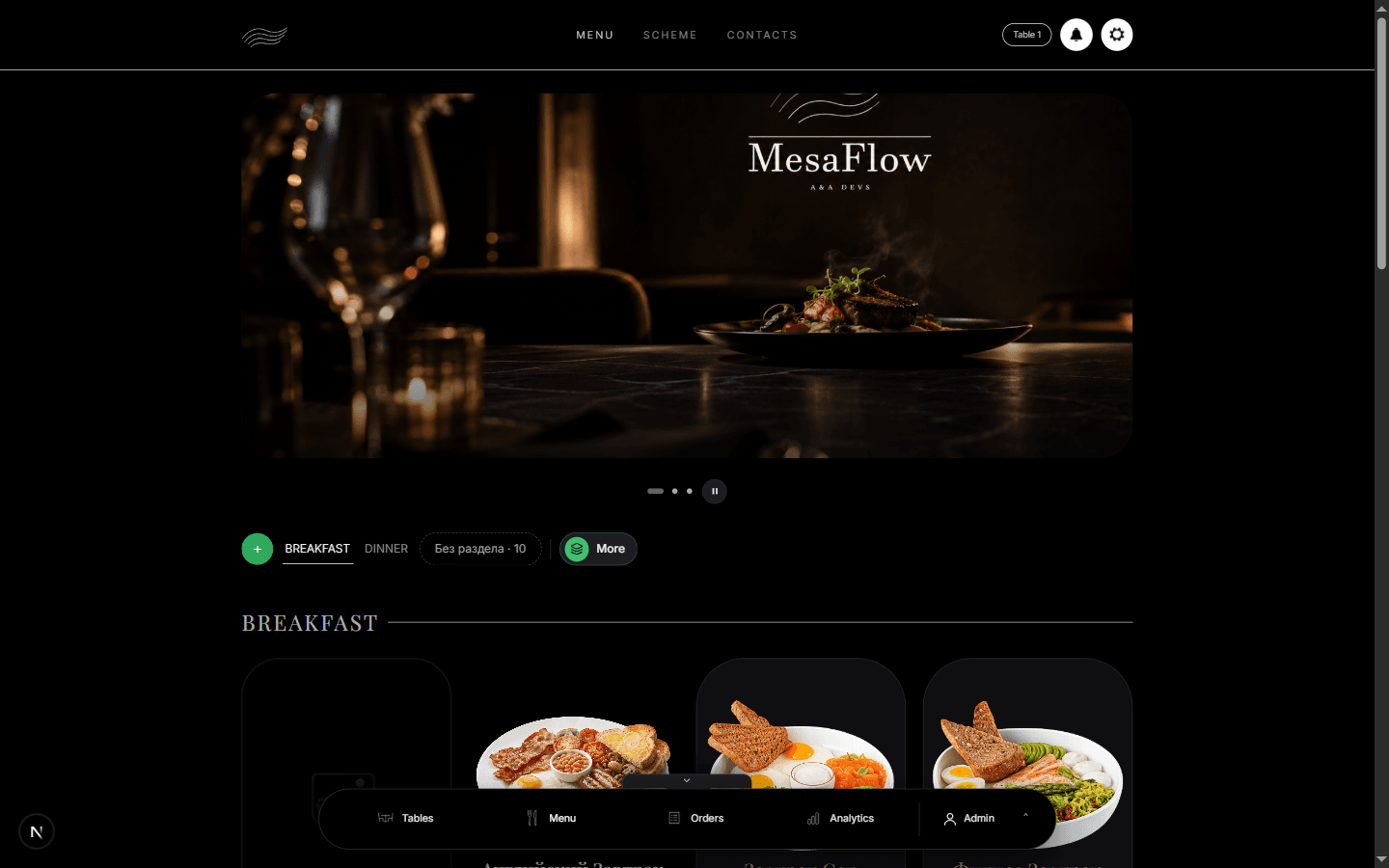
Dashboard → Menu. Sections and their dishes are managed here. Toggle availability for a specific dish
Click the stock pill on the dish card to switch it to "Out of stock".
The item remains visible on the menu so guests can see it exists, but the "Add to Order" button is disabled with an "Out of stock" label.
Toggle an individual ingredient out of stock
If you run out of an ingredient (e.g. Avocado or Truffle Oil), click into the product’s ingredient list and mark that ingredient unavailable.
Any dish requiring that mandatory ingredient will reflect the shortage or prevent selection of that modification.
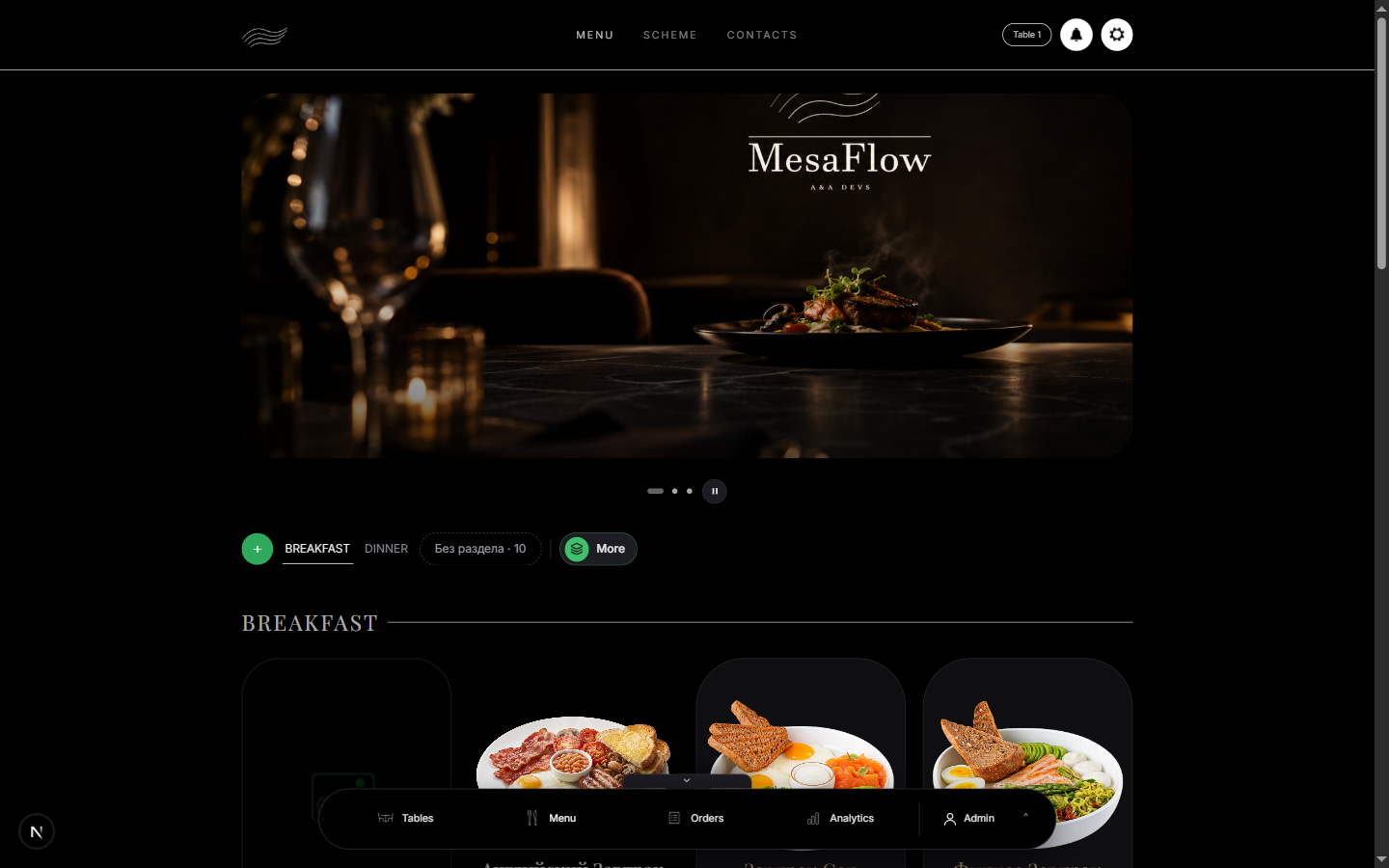
What you should see
The unavailable item is immediately prevented from being ordered by guests and staff.
Good to know
- Staff members who only have Stock permissions (like kitchen prep cooks) can toggle stock without having permission to edit prices or menu structure.
- Re-enabling stock is as simple as flipping the toggle back to available when fresh supplies arrive.
Related guides
- How to Create and Organize Menu SectionsStructuring your menu categories, reordering sections with drag-and-drop, and setting scheduled availability.
- How to Add and Edit Menu Dishes and CombosCreating menu products, setting prices, configuring modifiers, specifying ingredients, and assembling combo sets.