How to Add and Edit Menu Dishes and Combos
Creating menu products, setting prices, configuring modifiers, specifying ingredients, and assembling combo sets.
Steps
Set pricing and portion options
Enter the base price. If the dish comes in multiple sizes (e.g. Half Portion / Full Portion, Small / Medium / Large), add portion variants.
Each portion variant can have its own price differential that automatically calculates at checkout.
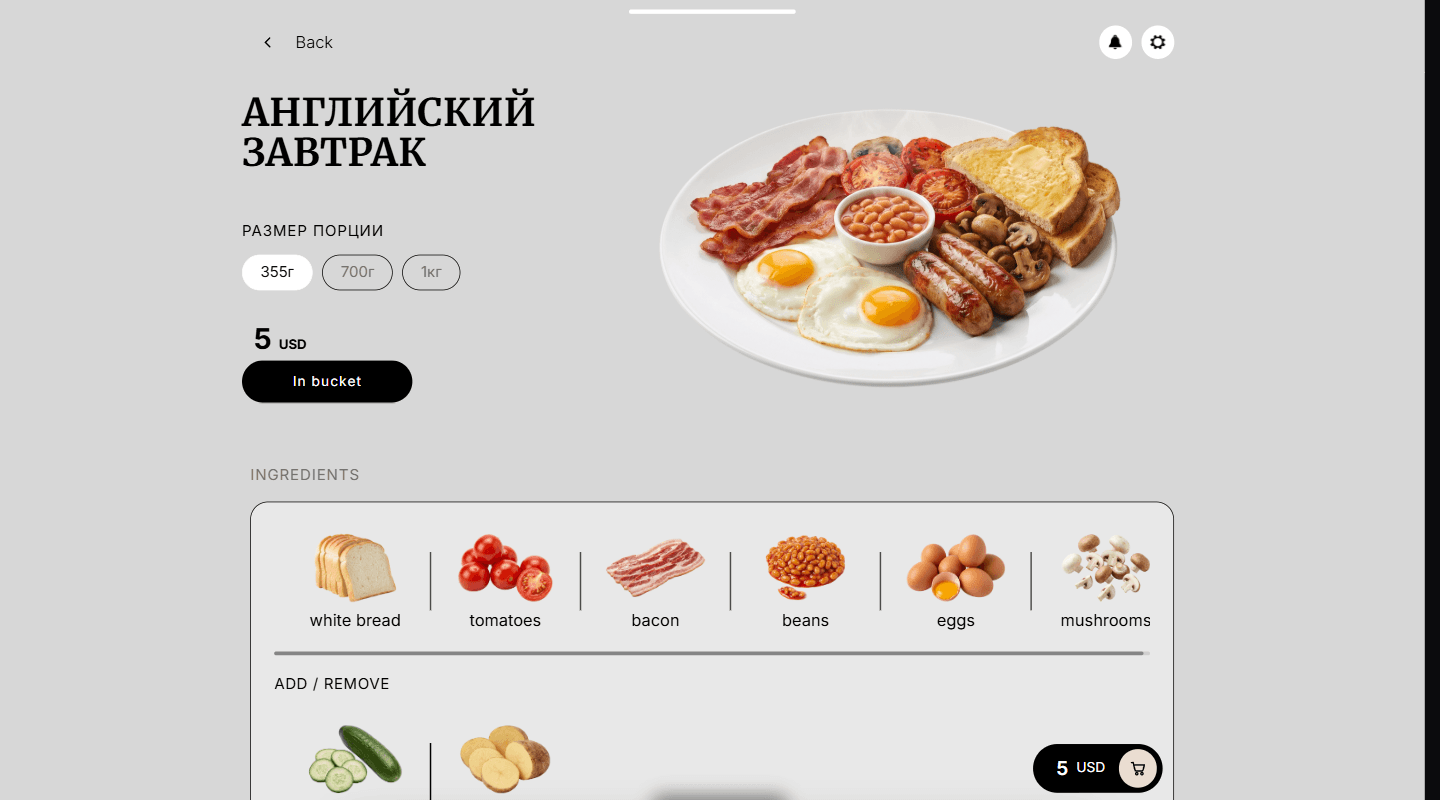
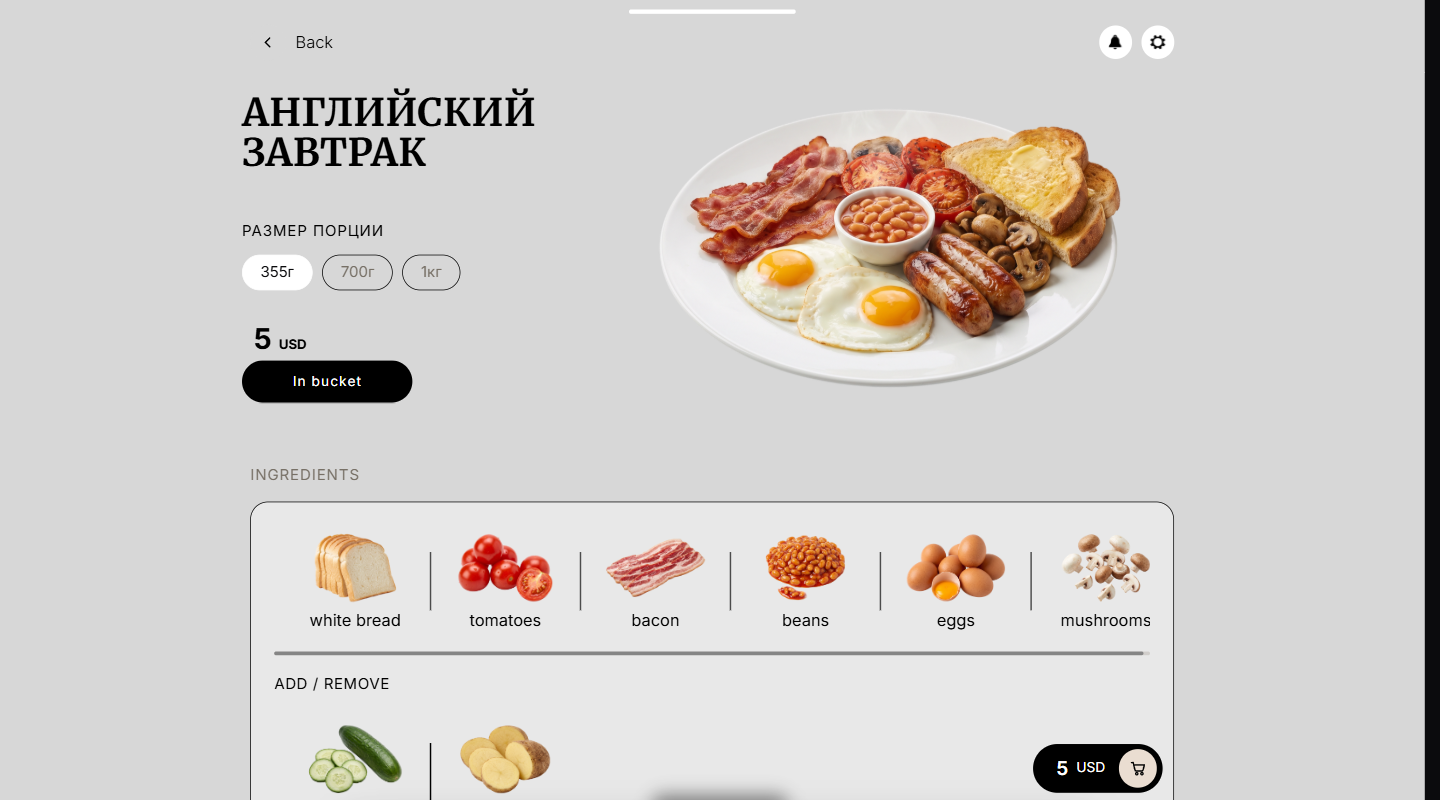
A dish shows its portion sizes and price at the top left. List base ingredients and modifier parameters
Specify the dish’s base ingredients and create customer choice groups.
Adding ingredients allows guests to customize their dish (e.g. "No Cilantro", "Extra Cheese"). Adding parameter groups allows mandatory or optional choices (e.g. Meat Doneness: Rare, Medium, Well Done).
Below the dish, its ingredients are listed, with an Add / Remove row for the optional ones. Upload dish photography
Click the image placeholder to upload a high-resolution photo.
MesaFlow formats images to maintain aspect ratio and fast load times across all mobile guest screens.
Create Combos and Meal Sets (Optional)
To offer a bundled meal (e.g. Burger + Fries + Beverage), use the Combos tab in the menu constructor.
Define what items are included and specify allowable substitution options (e.g. "Upgrade to Truffle Fries for +€1.50").
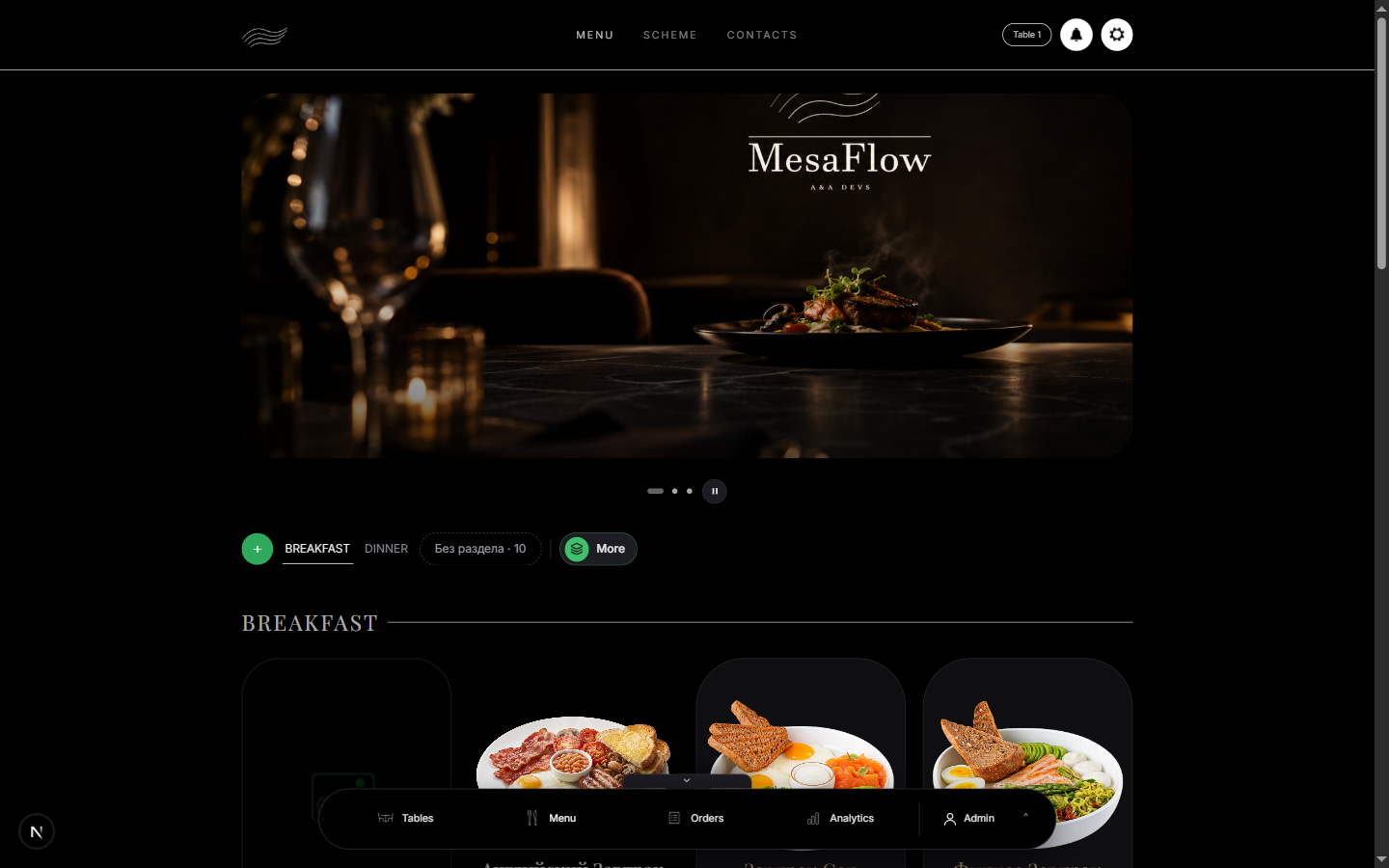
What you should see
The dish is published to the live menu and available for customers to order.
Good to know
- Saved changes apply immediately to live tables without requiring guests to reload their page.