Browsing the Menu and Customizing Dishes
Navigating categories, dish options, combo substitutions, and ingredient preferences.
Steps
Browse categories or search
Use the horizontal category bar at the top (e.g. Starters, Mains, Drinks) or tap the search icon to find specific items.
Tapping a category scrolls straight to that section. Items currently 86ed or out of stock will show as unavailable.
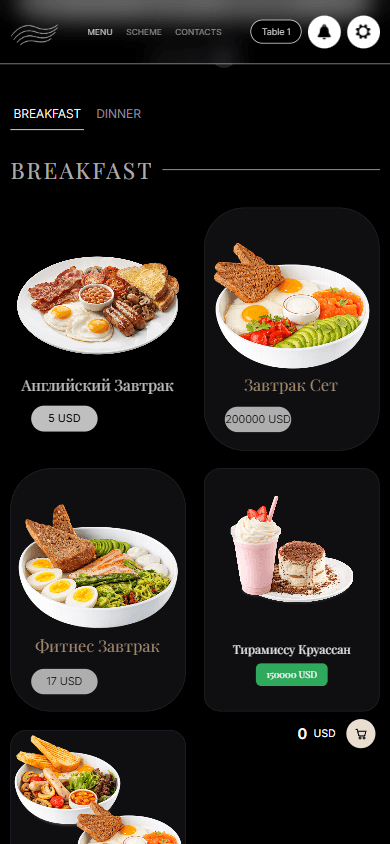
Sections are listed under the header; scroll to see their dishes. Open a dish detail card
Tap on any dish card to view its photo, detailed description, ingredients, and portion options.
If the restaurant has configured portion sizes or modifiers (such as meat temperature, dressing, or sides), select your preference.
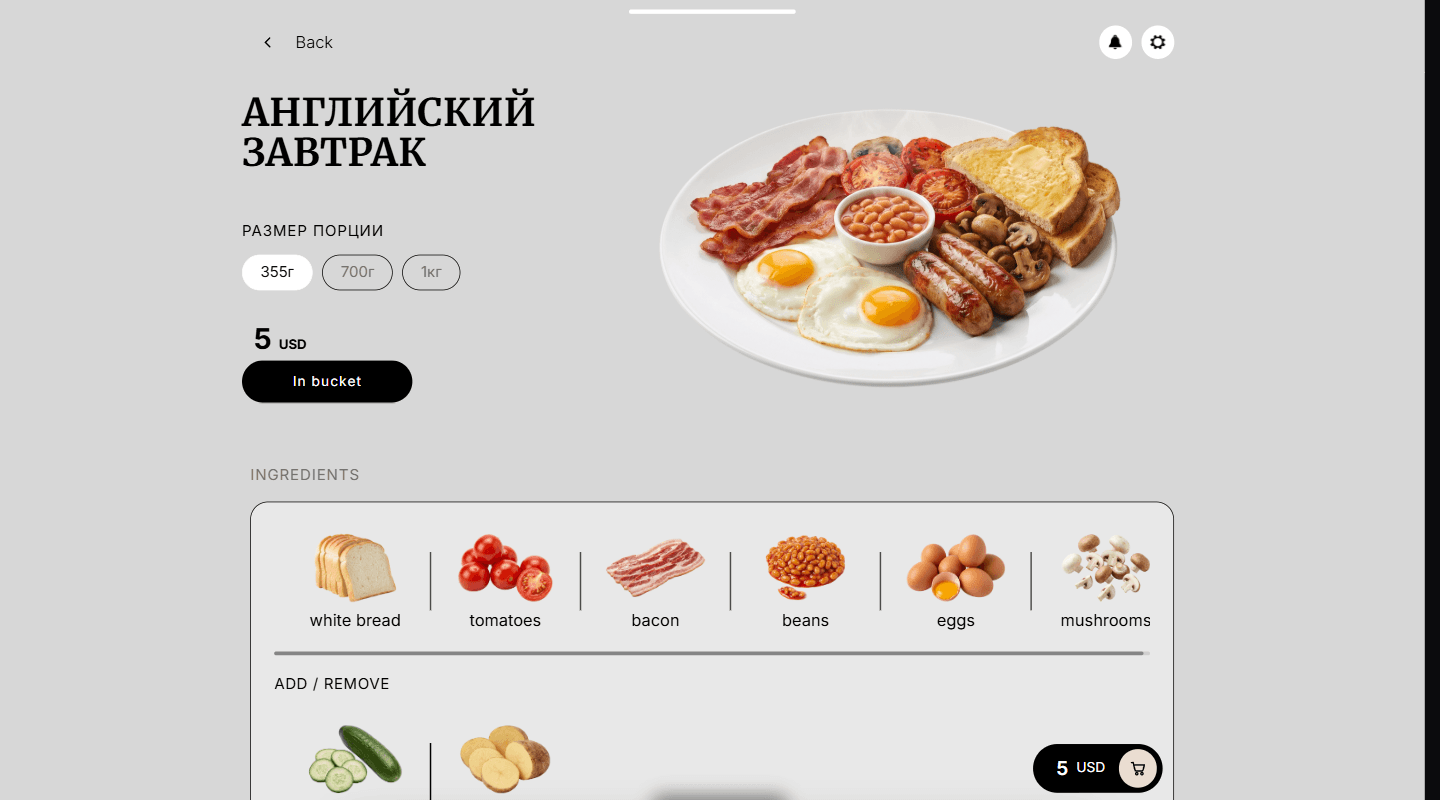
Tapping a dish opens its page, with the photo, portion sizes and price. Customize ingredients and combos
Add or remove ingredients where supported, or swap items inside a combo bundle.
Your selections will be explicitly printed on the kitchen ticket (e.g. "No Onions", "Extra Sauce", "Fries instead of Salad").
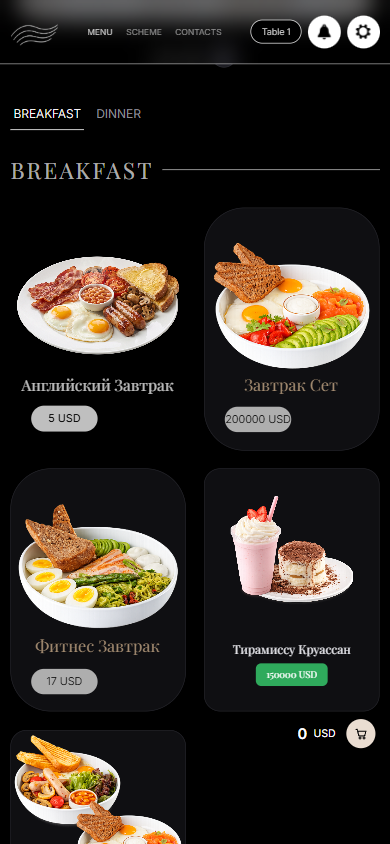
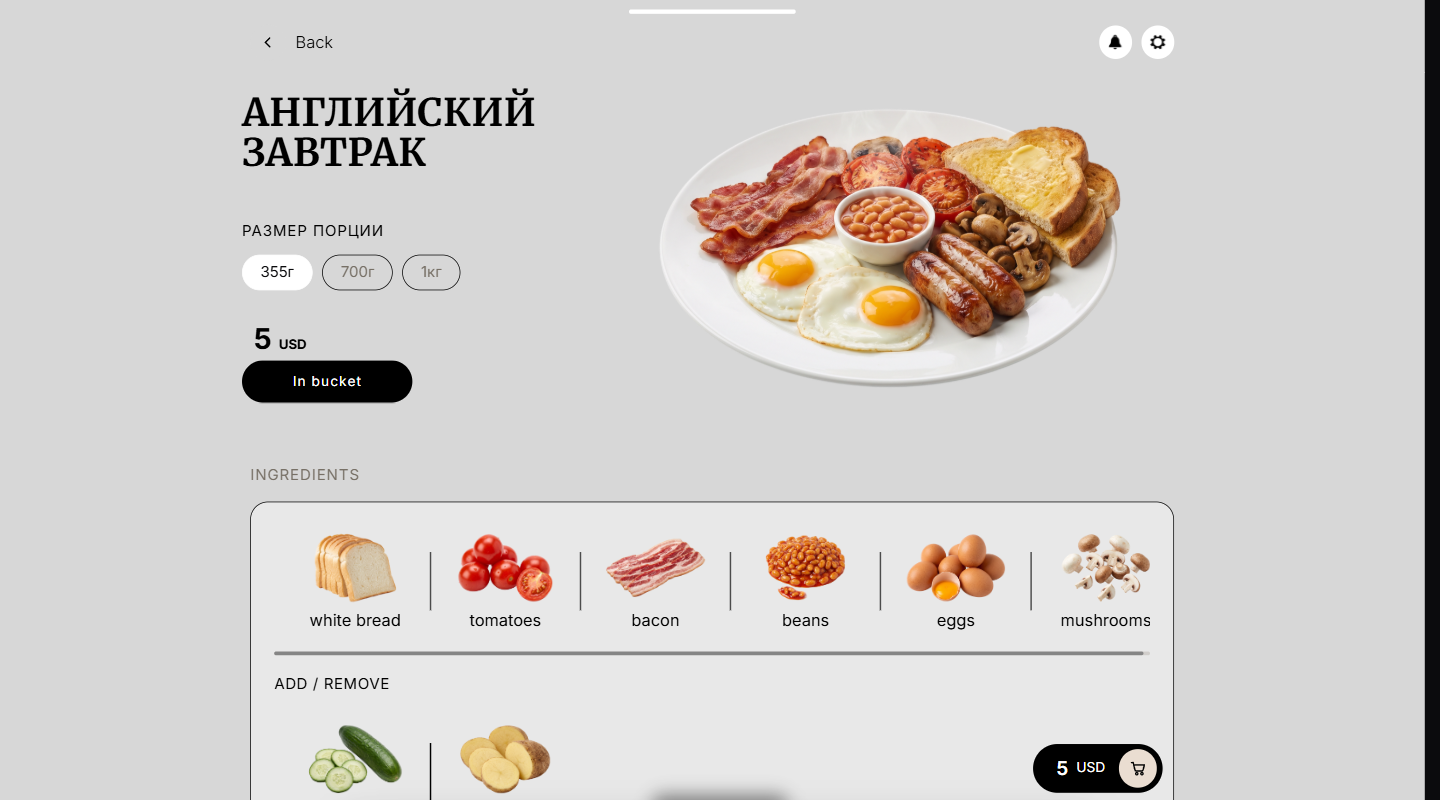
Ingredients are listed under the dish. Optional ones sit in the Add / Remove row.
What you should see
Dishes are customized and placed in your cart ready for ordering.
Good to know
- Dishes marked Out of Stock cannot be added to the cart.
- If your table is participating in an active Dining Plan (such as Buffet Libre or Menu del Día), eligible dishes will display as included.